Add your roster
Video coming soonAdding your players to the roster
A roster is the list of people on your team. The quickest way to build it is to paste a list. You do not need to tidy it first.
- Open your team and tap Roster at the bottom.
- Find the box called Paste your roster. (Brand new team? Setup walks you to it.)
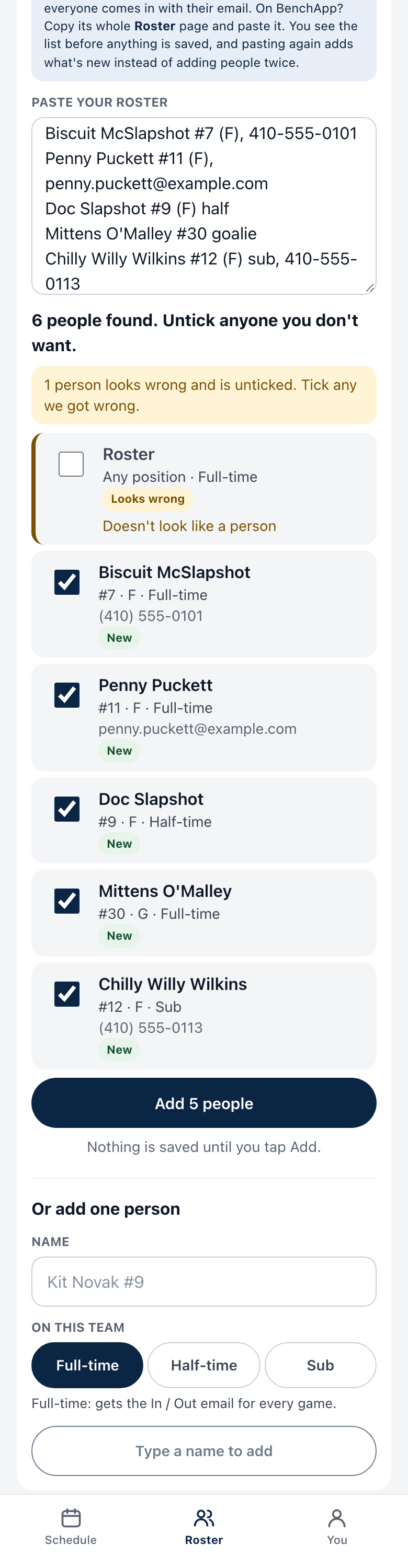
- Paste your players, one person per line. Names alone are fine.
You can add more on the same line if you have it:
- a position in brackets, like
(D)or(F/D), or the wordgoalie - a jersey number, like
#77 halffor someone who plays about half the gamessuborsparefor someone you only call when you are short- an email or phone number
- a position in brackets, like
- Tap Read the list.
- Look at the preview. Each row is a person. Rows that do not look like a person (a heading, a date, the word “Pending”) are unticked for you. Tick or untick any row.
- Tap the Add button at the bottom. It shows how many people will be added.
Good to know
Section titled “Good to know”- Nothing is saved until step 6. Reading the list only shows you a preview.
- Nobody gets an email or text when you add them. You decide when to invite people.
- Pasted the wrong thing? Right after adding, tap Undo. It stays for 30 minutes, or until you leave the page. It removes the people that paste created.
- Paste again later. If a person is already on the team, they are updated, not added twice.
- Copying from BenchApp? Copy the whole Roster page and paste it. League Fam knows that layout.
- Add one person by hand with the form under the paste box.